How to Add a Progress Bar to Your Shopify Store (Step-by-Step)
Namkos Team
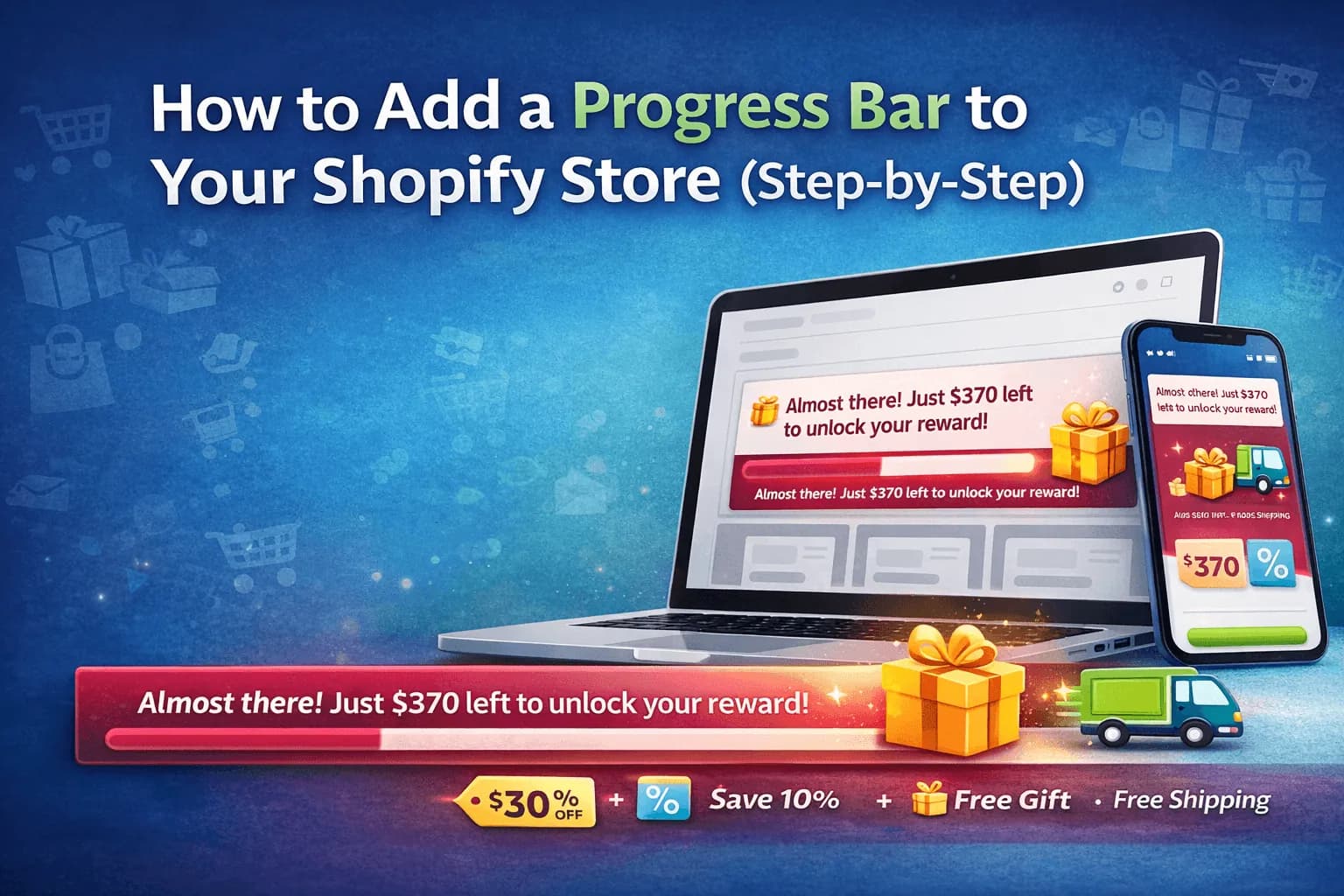
Summary: A complete step-by-step guide to adding a progress bar to your Shopify store using Namkos Progress Bar. Four steps, four videos, and under 5 minutes from install to live. Choose from free shipping, discounts, or free gift rewards, and customise everything to match your brand.
You want a progress bar on your Shopify store. You've seen them on other stores, you know they work, and you want one running today. Good. This guide gets you there in four steps.
No code. No developer. No guesswork. Just a clear walkthrough with a video at every step so you can follow along in real time.
By the end of this post, you'll have a fully customised progress bar live on your store, motivating customers to add more to their cart.
Key Takeaways
- Install and set up Namkos Progress Bar in under 5 minutes, no technical skills required
- Choose your reward type: free shipping, percentage discount, dollar discount, or free gift
- Customise colours, messages, and placement to match your brand perfectly
- Video tutorials embedded at every step so you can follow along
What Is a Progress Bar?
A progress bar is a visual indicator on your Shopify store that shows customers how close they are to unlocking a reward. It might say "You're $12 away from free shipping" or "Add $8 more to get 10% off." As customers add items to their cart, the bar fills up and the message updates in real time.
This works because of the goal gradient effect: people are more motivated to complete a goal when they can see how close they are to reaching it. A customer who sees they're $12 away from free shipping is far more likely to add another item than a customer who just sees a flat "Free shipping on orders over $50" message.
Namkos Progress Bar supports four reward types: free shipping, percentage discounts, dollar-amount discounts, and free gifts. You choose what motivates your customers best.
Step 1: Install the App
The first step is installing Namkos Progress Bar from the Shopify App Store. The video below walks you through the full process in under 5 minutes.
What happens during installation:
- Find Namkos Progress Bar in the Shopify App Store and click Install
- Approve the standard permissions the app needs
- You'll land on the dashboard where you can see your plan, promotions, and analytics
That's it. The app is installed. Now you need to enable it so it actually appears on your store.
Step 2: Enable the App Embed
This is the step most merchants miss, and it's the number one reason bars don't show up. You need to enable the app embed in your Shopify theme editor. It takes about 10 seconds.
How to enable it:
- Go to the App Status section in your Namkos dashboard
- Click the link to open your theme editor
- Toggle the Namkos Progress Bar embed to "on"
- Save your theme
Once the embed is active, the App Status checklist turns green and you're ready to create your first promotion.
Pro tip: If your progress bar isn't showing on your store, check this step first. Nine times out of ten, the embed just needs to be toggled on.
Step 3: Create Your First Promotion
A promotion defines what your customers are working toward and what they earn when they reach it. This is where you set your goal amount and choose your reward type.
Setting up your promotion:
- Name it for easy management (e.g., "Free Shipping Over $50")
- Set your goal amount. We recommend setting this 20-30% above your current average order value. If your AOV is $40, try $50 as your goal
- Choose your reward type:
- Free shipping is the most popular and typically has the highest conversion rate
- Percentage discount (e.g., 10% off) works well for higher-value stores
- Dollar discount (e.g., $10 off) appeals to deal-seeking customers
- Free gift creates excitement and works great for stores with low-cost add-on products
- Publish the promotion when you're happy with the settings
Once published, Namkos automatically creates the matching Shopify discount for you. No manual discount code setup needed.
100% Free - No Credit Card Required
Step 4: Customise the Progress Bar
Now for the fun part. The Progress Bar component is where you control how the bar looks, what it says, and where it appears on your store.
The editor has three tabs: Content, Styling, and Placement.
Content
Write the messages customers see at each stage:
- Main message: What they see before adding anything to the cart (e.g., "Spend {{threshold}} to get free shipping!")
- Progress message: What they see while working toward the goal (e.g., "You're only {{remaining_amount}} away from free shipping!")
- Goal-reached message: What they see when they hit the target (e.g., "You've unlocked free shipping!")
Use dynamic variables like {{remaining_amount}} and {{threshold}} so the messages update automatically as customers shop.
Styling
- Choose from nearly 20 colour templates (Ocean Deep, Christmas Magic, Black Friday, Summer Breeze, and more)
- Set the bar position: top or bottom of the page
- Choose fixed or scroll behaviour
- Customise typography, background gradients, and progress track colours
Placement
- Show the bar on all pages, or target specific collections and products
- Perfect if you want to run different promotions for different product categories
Once you're happy with the design, save and preview it on your store. Your progress bar is now live.
What's Next?
You've just set up the foundation. Here's how to get even more from your progress bar:
- Add Product Page and Cart Page components to show reward progress right next to the Add to Cart and Checkout buttons (available on paid plans)
- Set up upsell product recommendations so customers see exactly which products to add to reach their goal
- Watch our complete video tutorial series for a deep dive into every feature: Namkos Progress Bar Video Tutorials: The Complete Guide to Every Feature
In our experience, merchants who use the progress bar alongside Product Page and Cart Page components typically see stronger lifts in average order value than those using the top bar alone. Results vary based on niche, traffic, and execution.
Frequently Asked Questions
How long does it take to add a progress bar to my Shopify store? Under 5 minutes from install to live. The longest part is choosing your colour template and writing your messages.
Do I need any coding or technical skills? No. Everything is configured through a visual editor. Install, toggle the app embed on, create a promotion, and customise the design. No code involved.
Is Namkos Progress Bar free? Yes. The Launch plan is free forever with no credit card required. It includes the Progress Bar component (top or bottom bar), multiple promotions, and full customisation. Paid plans unlock Product Page and Cart Page components, upsell recommendations, and advanced analytics.
What reward types can I offer? Four types: free shipping, percentage discount (e.g., 10% off), dollar-amount discount (e.g., $10 off), and free gift. You choose what works best for your store and customers.
Will the progress bar slow down my store? No. Namkos Progress Bar is lightweight and performance-minded. It's built with Core Web Vitals in mind and won't affect your store's loading speed.
Free Plan Available - No Credit Card Required