8 Quick Tips for Your Shopify Progress Bar (With Video)
Namkos Team
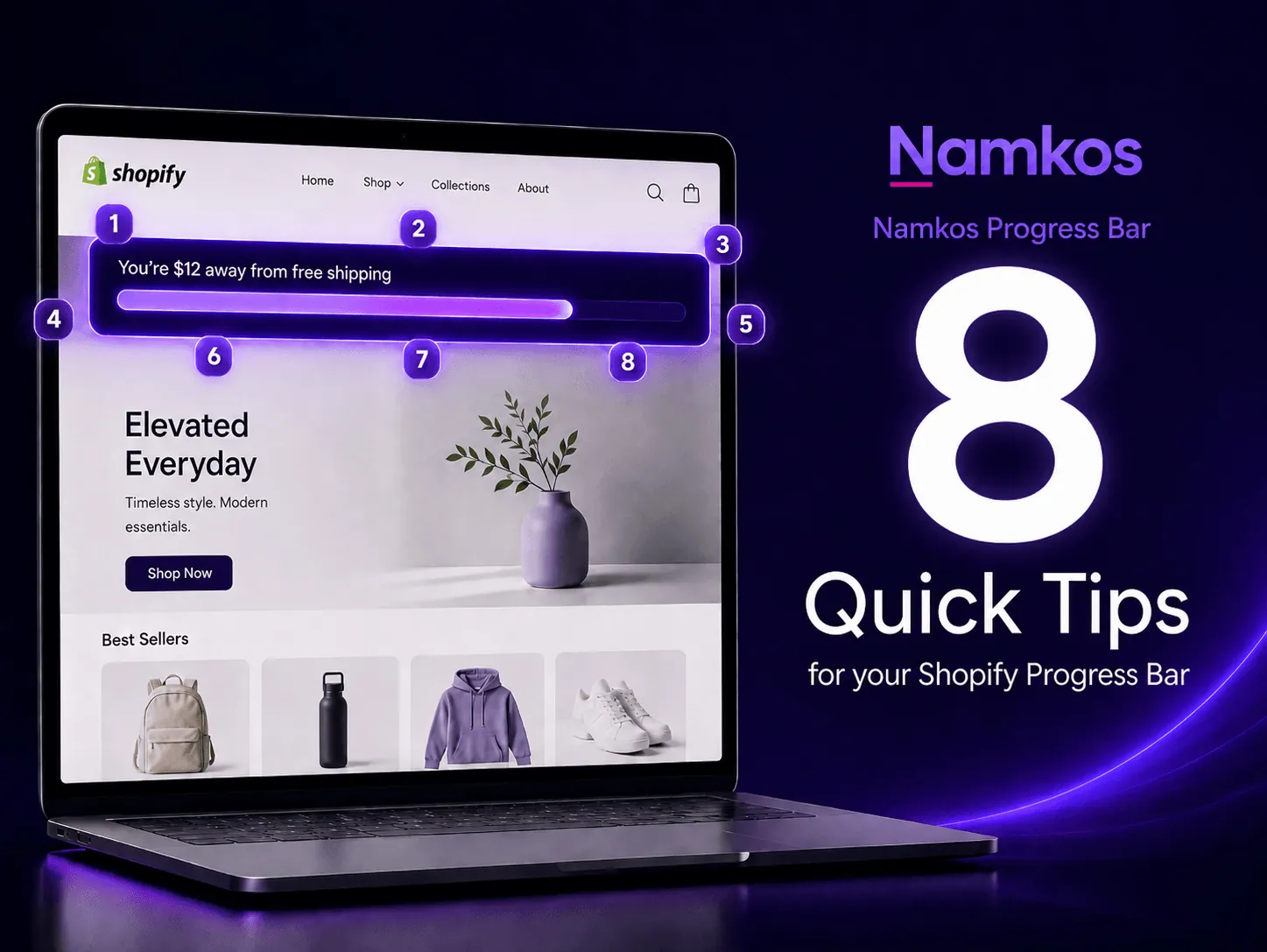
Summary: Eight quick, actionable tips to get more from your Namkos Progress Bar, each linked to the relevant video tutorial. Covers threshold formula, dynamic message variables, colour templates, mobile placement, cart upsells, product selection strategy, page targeting, and testing before you go live.
Most merchants install a progress bar, enter a reward amount, and publish. That's a solid start. But a handful of small adjustments, in how you set your threshold, write your messages, and configure your components, can make a real difference to how many customers actually reach the reward.
These eight tips take under two minutes each to implement. Together, they can have a meaningful impact on your average order value.
Key Takeaways
- Set your threshold using a simple formula based on your current AOV
- Dynamic variables like
{{amount}}make your messages feel personal and precise - Mobile placement and colour choice affect how visible your bar actually is
- The Cart Page component is your highest-intent conversion spot
Tip 1: Pick a Colour Template That Matches Your Brand
Your progress bar appears on almost every page of your store. If the colours clash with your brand, customers notice, and not in a good way. Namkos Progress Bar includes a set of ready-made colour templates, from minimal and clean to seasonal palettes like Black Friday, Summer Breeze, and Ocean Deep.
Pick the template closest to your brand, then adjust the accent colour to match your store's primary colour. It takes two minutes and makes the bar feel like it belongs there instead of feeling like a third-party widget.
The Progress Bar Component tutorial walks through every styling option, including typography and background gradients:
Tip 2: Set Your Threshold 20-30% Above Your Current AOV
This is the most important setting in the entire app. Set your threshold too low and customers reach it with a single item, so there's no extra spend. Set it too high and the goal feels out of reach, so there's no motivation to try.
The sweet spot is typically 20-30% above your current average order value. If your AOV is $48, try a threshold between $58 and $63. Customers who are already spending $48 can usually be nudged a little further without much friction.
Check your current AOV in Shopify Analytics before configuring your first promotion. The Creating First Promotion tutorial covers how to set this up correctly:
Tip 3: Use Dynamic Variables in Your Messages
Static messages like "Spend $50 for free shipping" are fine. Dynamic messages that update in real time are far more compelling. Namkos lets you use the {{amount}} variable in your bar messages, so the text automatically shows exactly how much a customer still needs to add.
Instead of "Spend $50 for free shipping," the customer sees: "You're $12 away from free shipping."
That specific number is what activates the goal gradient effect. A customer who sees they're $12 away from their reward is far more motivated to add one more item than someone reading a generic threshold message. Combine it with a clear reward and you have copy that's hard to ignore.
Tip 4: Make Sure the Bar Is Visible Without Scrolling on Mobile
Over 70% of Shopify traffic comes from mobile. If your progress bar is buried below the fold, most customers will never see it. The default sticky top or bottom bar placement in Namkos keeps the bar visible as customers scroll, so it stays in view across every page.
After publishing, check your bar on an actual mobile device. If you have to scroll to find it, adjust the position settings. Small screens have less real estate, but the sticky bar format means visibility is not something you have to sacrifice. The Progress Bar Component tutorial covers placement and mobile options in detail (same video as Tip 1 above).
Tip 5: Add the Cart Page Component for One Last Nudge
The cart page is the highest-intent moment in your store. A customer who reaches the cart has already decided they want to buy something. Showing your progress bar here, right before checkout, is one of the most effective places to increase what they spend.
The Namkos Cart Page component adds a progress bar and optional product recommendations directly on the cart page. Customers can add a suggested product with one tap without leaving the cart, which removes the friction that usually kills last-minute upsells.
The Cart Page Component tutorial walks through the full setup:
Recorded before the September 2026 pricing update: the cart page is now on every plan, including free. The video says the bar adapts to cart drawers automatically. It may show in your theme's cart drawer, so preview it on your store.
Tip 6: Choose Upsell Products That Are Genuinely Related
If you're using the product recommendations feature, the products you suggest matter a great deal. A kitchen accessories store showing a random candle in the cart upsell will not convert. An add-on item that clearly complements what the customer is already buying will.
Think about what a customer who just added your most popular product would logically want next. That is the product to feature in your upsell slot. The Upsell Functionality tutorial covers how to configure product recommendations per price tier so the right products appear at the right cart value:
Tip 7: Use Placement Targeting to Show the Right Bar on the Right Page
Not every message belongs on every page. A general free shipping bar works well on the homepage and collection pages. A product-specific reward prompt is more relevant on product and cart pages, where customers are actively considering adding to their order.
Namkos lets you target exactly which pages each bar appears on, so you can match the message to where the customer is in their journey. A common setup is a broad awareness bar on top-of-funnel pages and a more specific, urgency-driven message on product and cart pages. The Progress Bar Component tutorial (Tip 1 video) covers placement targeting in detail.
Tip 8: Test Your Entire Flow as a Customer Before Going Live
Before publishing any promotion, add a product to your cart and watch the bar behave. Does the amount update in real time? Does the bar message change when the goal is reached? Does the reward actually apply at checkout?
Testing takes two minutes and prevents the one mistake that damages trust most: a broken promotion that shows the wrong number or fails to deliver the reward. The Cart Page Component tutorial includes a walkthrough of the full testing flow so you know exactly what to look for before you hit publish.
Common Mistakes to Avoid
- Setting the threshold too high. A goal that feels unreachable gets ignored. Start at 20-30% above your current AOV and adjust based on what you observe over the first few weeks.
- Using the same message across every component. Your top bar, product page, and cart page are three different moments in the customer journey. Tailor the message tone and urgency to where the customer is.
- Skipping the test before publishing. A broken promotion that shows the wrong amount or fails to apply the discount at checkout erodes customer trust fast.
Quick Reference Checklist
Before your progress bar goes live:
- Threshold set 20-30% above current AOV
- Dynamic
{{amount}}variable used in messages - Colour template selected and adjusted to match brand
- Bar placement verified on mobile without scrolling
- Cart Page component enabled
- Upsell products are relevant to what customers are buying
- Page targeting configured for each component
- Full checkout flow tested end-to-end
For the complete setup walkthrough, see How to Add a Progress Bar to Your Shopify Store. For all eight tutorial videos in one place, visit the Namkos Progress Bar Video Tutorial Hub.
Frequently Asked Questions
How long does it take to implement all eight tips? Most merchants can work through all eight tips in under 20 minutes. Tips 1, 3, 4, and 7 each take two minutes or less. Tips 5 and 6 take around five minutes each to configure, and tip 6 needs a paid plan.
Do I need the paid plan for all of these tips? No. Tips 1, 2, 3, 4, 5, 7, and 8 all work on the free plan. Tip 6 needs Growth or Scale, which add product recommendations.
How do dynamic variables work in the message?
Type {{amount}} anywhere in your message text and Namkos automatically replaces it with the exact amount the customer still needs to reach the reward. It updates in real time as they add items to their cart.
What is the best way to confirm the promotion is working correctly? Add items to your own cart and watch the bar update. Verify the reward applies at checkout before publishing. The Cart Page Component tutorial includes a step-by-step testing checklist so you know exactly what to check.
Free plan available • No credit card required