How to Set Up Upsell Product Recommendations on Shopify
Namkos Team
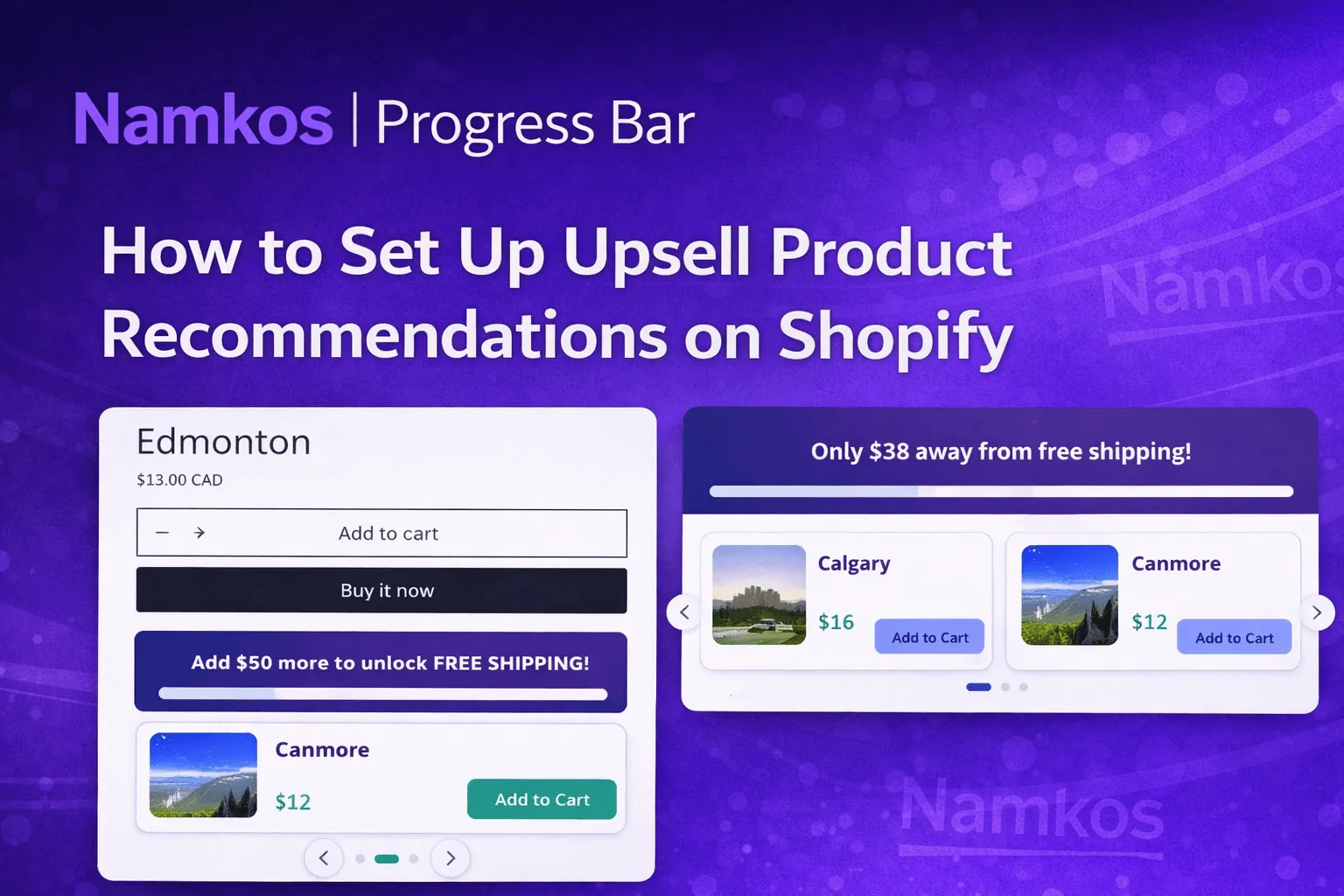
Summary: Upsell product recommendations built into your progress bar show customers the right products at the exact moment they are motivated to spend more. This guide covers the full setup, from enabling the feature to configuring price tiers, with a complete video tutorial embedded at each stage.
Upselling on Shopify does not have to mean intrusive popups or clunky third-party widgets. The most effective upsells happen in context, when a customer can already see a reward within reach.
That is exactly how the upsell functionality in Namkos Progress Bar works. Instead of interrupting the shopping experience, product recommendations appear inside the progress bar component itself, right on the product page or cart page, tied directly to the customer's progress toward free shipping, a discount, or a free gift.
This guide walks through the complete setup. Whether you prefer to watch first or follow written steps, the full video tutorial is embedded below and throughout each section.
What You Will Learn
📌 How to enable upsell recommendations on the Product Page and Cart Page components
📌 How to configure price tiers so the right products appear at the right moment
📌 How to write marketing copy that drives add-to-cart clicks
📌 How to add a bonus product for customers who reach their reward goal
How the Upsell Feature Works
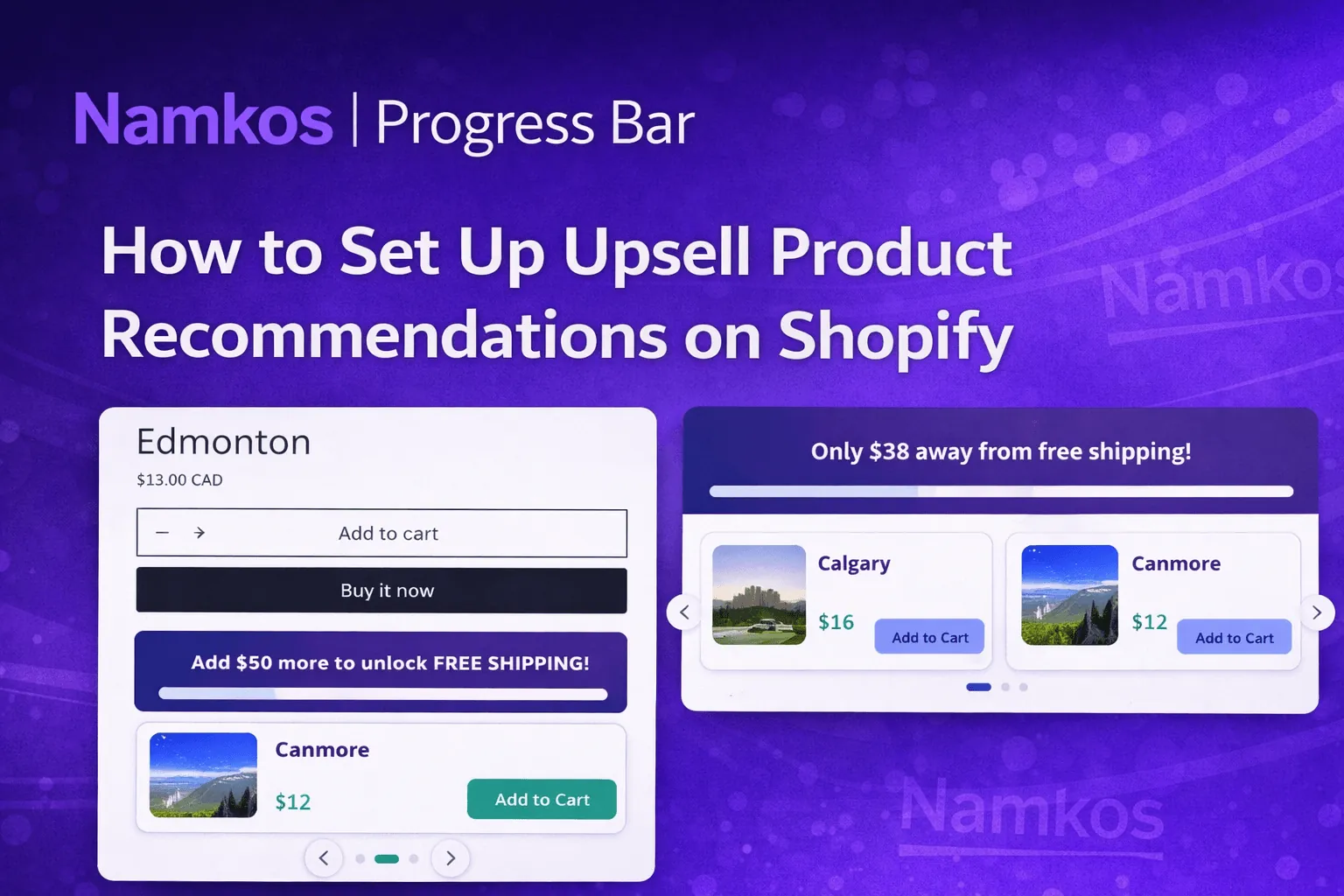
When a customer is browsing a product page or reviewing their cart, Namkos Progress Bar shows them how close they are to unlocking a reward. The upsell component extends this by displaying product recommendation cards alongside the progress indicator, matched to the specific gap between the customer's current cart value and the reward threshold.
For example, if a customer has $38 in their cart and your free shipping threshold is $50, the bar can display two or three products priced around $12 to $15, each with a one-click "Add to Cart" button. No popups, no separate upsell page, no friction.
The product recommendations update automatically as the customer adds items. Once they hit the reward threshold, the component switches to a celebratory goal-reached state, where you can optionally show a bonus product.
Free plan available • No credit card required • Setup in minutes
Full Video Tutorial
The video below covers the complete upsell setup from inside the Namkos Progress Bar dashboard. Watch through once to get oriented, then use the written steps below as a reference while you configure your own store.
Step 1: Enable the Upsell Feature
The upsell functionality is available on two components. Both components are on every plan; the upsell cards inside them need Growth or Scale:
- Product Page Component — shows the progress bar and product recommendations on product pages, positioned near the Add to Cart button
- Cart Page Component — shows the progress bar and recommendations inside the cart, before checkout
To enable it on either component:
- Open the Namkos Progress Bar dashboard from your Shopify admin
- Select the promotion you want to add upsells to
- Navigate to the Product Page or Cart Page component tab
- Toggle on Show Upsell Products
You will see a new configuration section appear for price tiers and product selection.
The free plan includes the top/bottom bar, product page and cart page bars, without product recommendation cards. Upsell cards need Growth or Scale.
Step 2: Set Up Price Tiers
Price tiers let you show different products depending on how far the customer is from the reward. This is where most of the strategic thinking happens.
A simple three-tier setup for a $60 free shipping threshold might look like this:
| Cart Value | Gap to Threshold | Recommended Products |
|---|---|---|
| $0 – $20 | $40+ away | Higher-value items ($30–$40) |
| $20 – $45 | $15–$40 away | Mid-range items ($15–$25) |
| $45 – $59 | Under $15 away | Small add-ons and impulse items (under $15) |
To configure each tier in the dashboard:
- Click Add Price Tier
- Set the cart value range (e.g., $0 to $20)
- Select two or three products from your Shopify catalogue
- Save, then repeat for the next tier
Choosing the right products for each tier
The products that tend to perform best in upsell cards are:
- Items that complement what the customer is likely buying (accessories, consumables, add-ons)
- Products with clear value at a glance, since the card format is compact
- Items with healthy margins, given that the customer is already receiving a reward
Step 3: Write Your Marketing Text
Each price tier has a short text field that appears above the product recommendations. This copy is the difference between a generic suggestion and a genuine nudge toward the reward.
Avoid vague phrases like "You might also like." Instead, tie the message directly to the reward:
- "Add one of these to unlock free shipping"
- "Just $12 more and your 10% discount is ready"
- "Almost there. One of these will get you to your free gift"
Keep this copy under 60 characters so it displays cleanly on mobile. Short, specific, and reward-focused outperforms longer and generic every time.
Step 4: Add a Goal-Reached Bonus Product
When a customer crosses the reward threshold, the upsell component shifts from motivational to celebratory. You can take advantage of this moment by showing a bonus product, an item that appears only after the goal is reached.
This works well for:
- A limited-edition product or bundle
- A high-margin item you want to surface at the right moment
- An exclusive add-on that feels like a treat rather than a sales pitch
To set it up:
- Scroll to the Goal Reached State section in the upsell settings
- Toggle on Show Bonus Product
- Select the product and write a short message (e.g., "You unlocked free shipping. Here is something extra.")
The customer is already in a reward mindset at this point, which makes them more receptive to one more add.
Step 5: Style Your Upsell Cards
The product recommendation cards inherit your progress bar's colour scheme by default. You can adjust further from the styling tab:
- Card background and border: Subtle contrast from the page background helps the cards stand out without feeling like ads
- Button colour: Keep this consistent with your existing CTA colour
- Border radius: Match your Shopify theme's general style (sharp corners vs rounded)
- Image display: Compact or standard size, depending on how many products you are showing per tier
Always preview on mobile before publishing. The Namkos Progress Bar components are built mobile-first, but a quick check on a small screen after making styling changes saves you from surprises.
Tips for Better Upsell Performance
A few things worth testing once you have the basics live:
Limit to two or three products per tier. More choices create decision paralysis. Two products is often the sweet spot, three is the maximum before conversion drops.
Match product price to the gap, not to your bestsellers. Your best-selling item is not always the right upsell recommendation. A $45 product shown to someone who is $12 away from their threshold creates a mismatch. Tiers work best when the recommended products genuinely close the gap.
Review which products get added. The analytics tab in Namkos Progress Bar shows which upsell products are being added most frequently. Use this data to swap out underperformers after two to three weeks.
Connect the upsell to all four reward types. Namkos Progress Bar supports free shipping, discount percentage, flat discount, and free gift promotions. The upsell tiers work the same way across all four, so you can run a discount promotion during a sale event and still have relevant product recommendations configured.
For a full walkthrough of all eight tutorial videos, including installation, dashboard setup, and the cart and product page components, see the Namkos Progress Bar Video Tutorial Hub.
If you are just getting started and want to set up your first promotion before configuring upsells, start with How to Add a Progress Bar to Your Shopify Store.
Frequently Asked Questions
Do I need the paid plan to use upsell product recommendations? Yes. Upsell cards are available on the Growth and Scale plans. The free plan includes the top/bottom bar, product page and cart page bars, without product recommendation cards.
Can I show different products on the Product Page vs the Cart Page? Yes. Each component has its own independent upsell configuration. You can show different tiers and different products on the product page compared to the cart page.
How many products can I show per tier? You can add up to five products per tier. We recommend two or three for the best experience on mobile screens.
Does the upsell work with all reward types? Yes. Whether your promotion offers free shipping, a discount percentage, a flat discount, or a free gift, the upsell price tiers work the same way across all four.
Will upsell cards slow down my store? No. Namkos Progress Bar is built to be lightweight and performance-minded. The components load asynchronously and are designed to protect your Core Web Vitals score.
Free plan available • No credit card required • Setup in minutes