Free Shopify Announcement Bar: Set Up Before Black Friday
Namkos Team
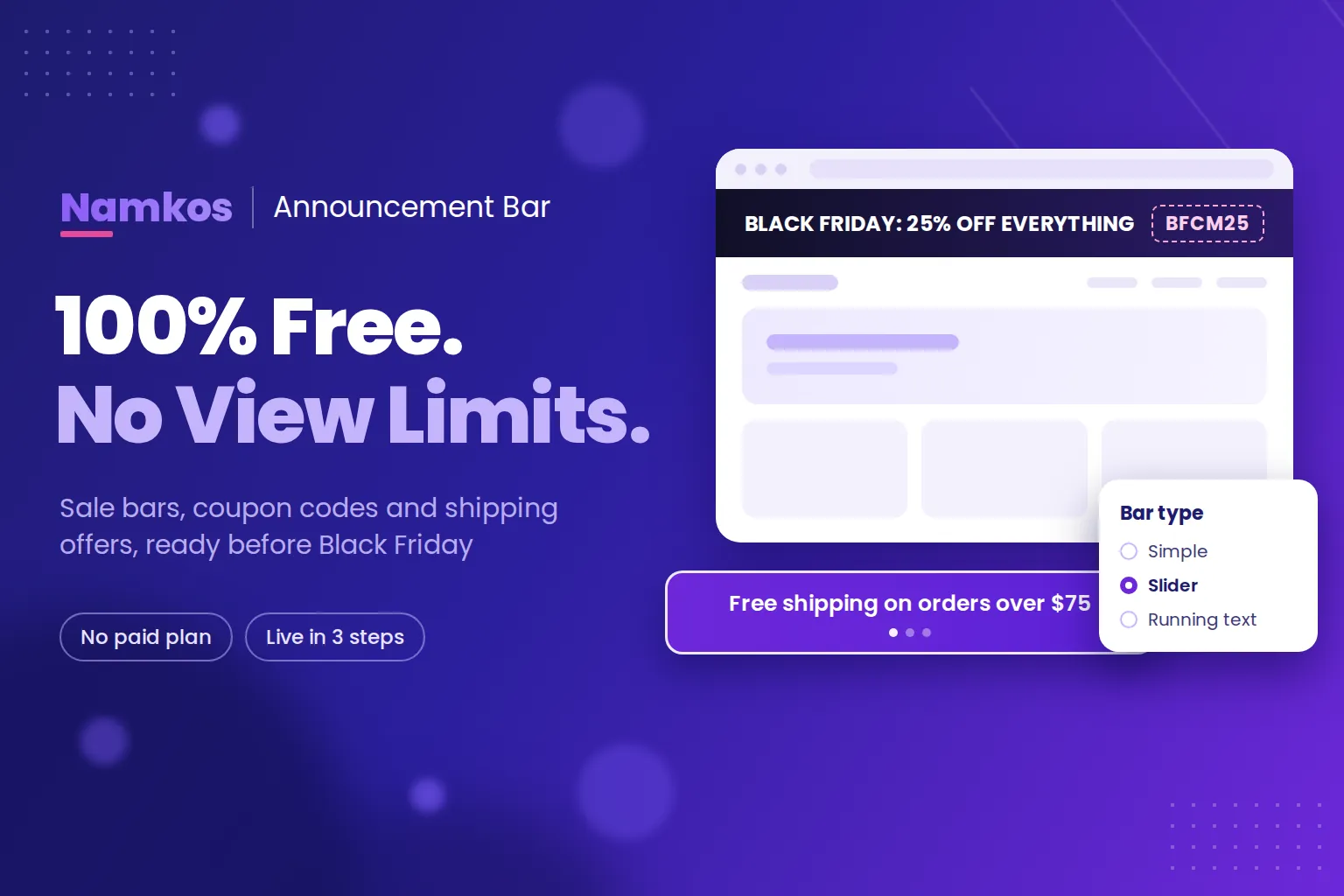
Summary: Namkos Announcement Bar is a free Shopify announcement bar app with no paid plan and no view limits. This post covers what it does, the three steps to get a bar live, and five bars to set up before Black Friday on November 27, with copy you can reuse.
Black Friday is on November 27 this year, and Cyber Monday follows on November 30. That leaves a few weeks to decide what every visitor sees first when they land on your store. For most Shopify stores, the answer is the thin strip at the very top of the page: the announcement bar.
A free Shopify announcement bar is the simplest way to put your sale, your coupon code or your shipping offer in front of every shopper. That's what we built Namkos Announcement Bar for, and it costs nothing. There's no paid plan and no cap on views.
Below you'll find what the app does, how to set it up in three steps, and five bars worth having ready before your sale starts.
Key takeaways
- Namkos Announcement Bar is 100% free: no paid plan, no view limits and no upgrade wall when traffic spikes.
- Setup takes three steps: install, create and publish a bar, then switch on the app embed in your theme editor.
- For Black Friday, plan a teaser bar, a sale bar with a coupon code, a shipping bar, a cart reminder and a "last chance" bar.
What Is a Shopify Announcement Bar?
A Shopify announcement bar is a slim banner that sits at the top or bottom of your store and shows one short message to every visitor, such as a sale, a discount code or a shipping offer. Because it appears on every page you choose, it is often the first thing a shopper reads and the last thing they see before checkout.
Most Shopify themes include a basic announcement bar. It usually gives you one line of text, one link and one colour. That is fine for a single message, but it gets limiting fast when you want a coupon code shoppers can copy, a button, a scrolling message, or a different bar on your cart page than on your home page. That is the gap an announcement bar app fills.
If you want the thinking behind why these bars work, our post on the psychology of announcement bars goes deeper into attention, urgency and clarity.
Why a Free Announcement Bar With No View Limits Matters in November
Some announcement bar apps cap their free plan at a set number of monthly views and ask you to upgrade once you pass it. In a normal month you might never hit that cap. On Black Friday weekend, you probably will.
And it happens on the days your announcement matters most. Then you either pay for a plan in the middle of your sale or watch your bar disappear.
Namkos Announcement Bar has no paid plan at all, so there is nothing to upgrade to and no limit to hit. Every bar type, every styling option and every placement is included. Your bar keeps showing whether your store gets fifty visitors that day or fifty thousand.
What Namkos Announcement Bar Can Do
Everything below is free. Nothing is locked behind an upgrade.
Three bar types
- Simple bar: one clear message that stays put. Best for a single offer.
- Slider: rotates through several messages, so one bar can carry your sale, your shipping offer and your returns policy.
- Running text: a scrolling marquee that moves across the screen and catches the eye.
Coupon codes and buttons
Add a coupon code to any bar. Shoppers click it and the code is copied for them, so there is no squinting and retyping at checkout. You can also add a call to action as a button, or make the whole bar clickable, and send shoppers straight to your sale collection.
Styling that matches your store
You control fonts, font size, weight and letter spacing, text and background colours, solid or gradient backgrounds, borders, rounded corners and spacing. You can add an icon from the built-in icon picker and a close icon so shoppers can dismiss the bar. A live preview shows every change as you make it.
Placement and targeting
Put the bar at the top or bottom of the page, and choose whether it stays visible while shoppers scroll (sticky) or scrolls away with the page. Then choose where it appears:
- Every page
- Home page only
- All product pages, or specific products
- All collection pages, or specific collections
- Cart page
You can run several bars at once on different pages, so your home page, a sale collection and your cart can each say something different.
View analytics
Your dashboard shows how many times your bars have been seen, so you know your message is actually reaching shoppers.
How to Set Up Your Free Announcement Bar in 3 Steps
You do not need to write any code. Plan for about ten minutes.
- Install the app. Add Namkos Announcement Bar from the Shopify App Store. It opens inside your Shopify admin.
- Create and publish your bar. Click "Create announcement". Write your message in the Content tab, style it in the Styling tab and pick where it shows in the Placement tab. Then publish it.
- Switch on the app embed. Open your theme editor, go to "App embeds", turn on Namkos Announcement Bar and click Save. This is a one-time step, and it is the one people most often miss. The App Status panel in the app tells you if the embed is still off.
If you get stuck, the Announcement Bar setup guide walks through every screen with screenshots.
5 Announcement Bars to Set Up Before Black Friday
You can build all five today, leave them unpublished, and switch each one on when its moment comes. Unpublished bars stay saved, so going live is a single click.
Bar 1: The teaser (now until Black Friday)
Tell shoppers a sale is coming so they come back for it.
- Copy: "Black Friday starts Nov 27. Our biggest sale of the year."
- Setup: simple bar, every page, top of page. Add a button to your newsletter signup page if you have one.
Bar 2: The sale bar with a coupon code (Black Friday to Cyber Monday)
This is the big one. Put the offer and the code in one place.
- Copy: "Black Friday: 25% off everything" with the coupon code BFCM25
- Setup: simple bar or running text, every page, sticky. Create the discount code in Shopify first, then add the same code to the bar so shoppers can tap to copy it.
Bar 3: The shipping or returns bar (all season)
Shipping costs and return worries stop a lot of holiday orders. Answer them before they come up.
- Copy: "Free shipping on orders over $75" or "Easy 30-day returns"
- Setup: run it as one slide in a slider next to your sale message, so you only use one bar. Only promise what your store actually offers.
If you are not sure what your free shipping minimum should be, our guide to setting the right free shipping threshold shows how to find a number that protects your margin.
Bar 4: The cart reminder (cart page only)
Shoppers on your cart page are close to buying. Remind them of the code so they do not leave to go looking for one.
- Copy: "Don't forget: use BFCM25 at checkout"
- Setup: simple bar, cart page only, with the coupon code added.
Bar 5: Last chance (Cyber Monday, November 30)
Cyber Monday is your last push, so give it its own message.
- Copy: "Last day: 25% off ends tonight"
- Setup: running text, every page. Unpublish it as soon as the sale ends, so the bar never shows an offer that has expired.
A note on timing: Namkos Announcement Bar does not schedule bars yet, so you publish and unpublish each one yourself. Set a reminder on your phone for each switch and it takes seconds.
Tips for Announcement Bars That Get Read
- Keep it short. Aim for under 15 words. Long messages get cut off or wrap onto two lines on phones.
- Lead with the offer. "25% off everything" beats "We are excited to announce our annual sale".
- Use contrast. Your text should stand out clearly against the background colour. Check it on your phone before you publish.
- One message per bar. If you have three things to say, use a slider rather than cramming them into one line.
- Match the page. A cart page bar should help someone finish their order, not send them off to browse a different collection.
- Take it down when it ends. An expired offer at the top of your store makes shoppers trust everything else on the page a little less.
Announcement bars also do the job many stores used to hand to popups, without blocking the page. We compared the two in why top brands moved from popups to announcement bars.
Pair It With a Progress Bar for Bigger Orders
An announcement bar tells shoppers about your offer. A progress bar shows them how close they are to earning it, and that is what moves people to add one more item.
Namkos Progress Bar shows messages like "Only $12 away from free shipping!" on the top bar, product page and cart page, and it supports four reward types: free shipping, a percentage discount, a dollar discount and a free gift. It has a free plan too. A common setup is the announcement bar for your Black Friday sale at the top of every page, and the progress bar on the cart page nudging shoppers toward a reward. Results vary based on niche, traffic and execution.
Frequently Asked Questions
Is Namkos Announcement Bar really free? Yes. There is no paid plan, no view limit and no feature locked behind an upgrade. Every bar type, styling option and placement is included.
Do I need to know how to code? No. You create and style bars inside the app. The only step outside the app is switching on the app embed in your Shopify theme editor, which takes one toggle and a click on Save.
Can I show different announcement bars on different pages? Yes. Each bar can show on every page, the home page, all or specific product pages, all or specific collections, or the cart page, and you can run several bars at the same time.
Can I schedule an announcement bar to start and end on its own? Not yet. For now you publish and unpublish bars yourself, which takes one click in the app. Build your bars ahead of time, keep them unpublished, and switch them on when your sale starts.
Will the announcement bar work with my Shopify theme? The app adds your bars through a Shopify app embed that you switch on in the theme editor, so it does not change your theme files. Once the embed is on, your bars appear on the pages you choose. Check them on your phone and desktop before a big sale.
Set up your bars this week, check them on your phone, and switch them on when your sale starts. If anything looks off, email support@namkos.com and a real person will help.
100% free • No view limits • Live in 3 steps